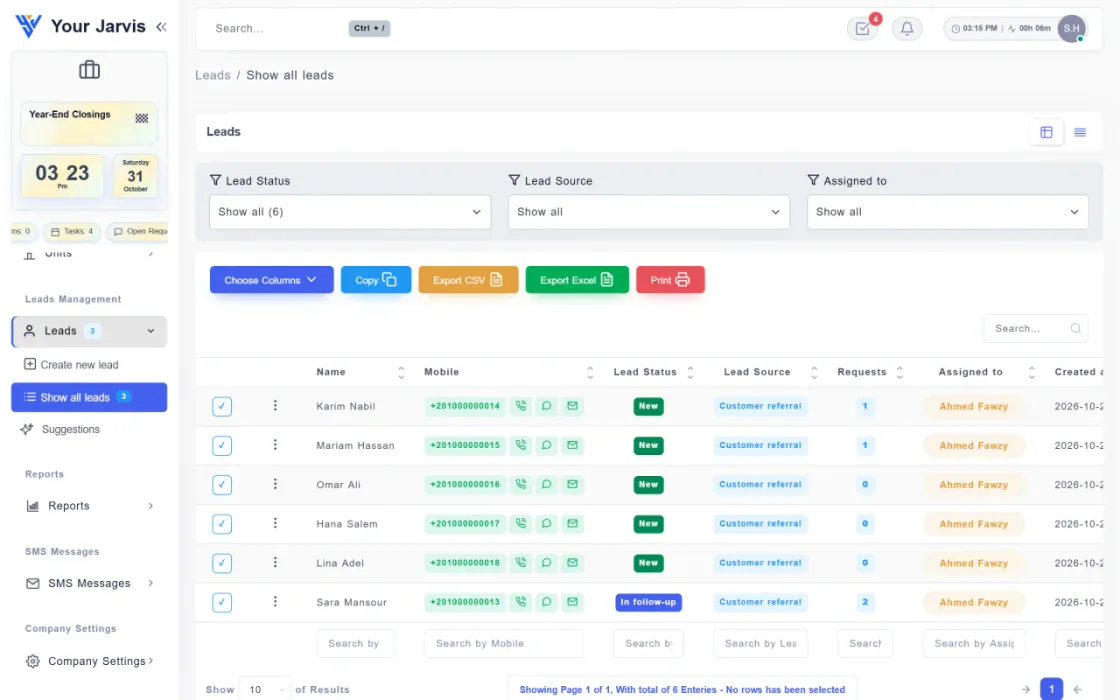


Customers and separate requirements
Keep contact channels, source, status and ownership beside recorded interactions. A customer can have separate buying or renting requirements, each with its own criteria and progress.
Selected work · Real-estate CRM product
A real-estate workspace connecting customers and their property requirements with inventory, follow-up and team visibility. The published workspace previews show the product interface with illustrative data.

A brokerage manages buyers, renters, owners and colleagues with different responsibilities. Your Jarvis CRM brings those relationships together while keeping customer searches, property records and assigned follow-up distinct. Authorised colleagues can continue from recorded context rather than reconstructing the conversation from separate files and messages.
The product follows a practical sequence: understand a requirement, review relevant inventory and record the next action. Roles and permissions govern access. The public product guide explains the working areas; a company demonstration helps review current capabilities, plan inclusions and the configuration, migration and training a team needs.
Real-estate companies and teams using the product in their work.

Escan Group

Elbeet Elmasry

REG Real Estate Group

Top Home

Z.Group

Egyptian Chamber of Real Estate
Established product areas from the approved CRM guide. Access and available capabilities follow permissions and the selected plan.
Keep contact channels, source, status and ownership beside recorded interactions. A customer can have separate buying or renting requirements, each with its own criteria and progress.
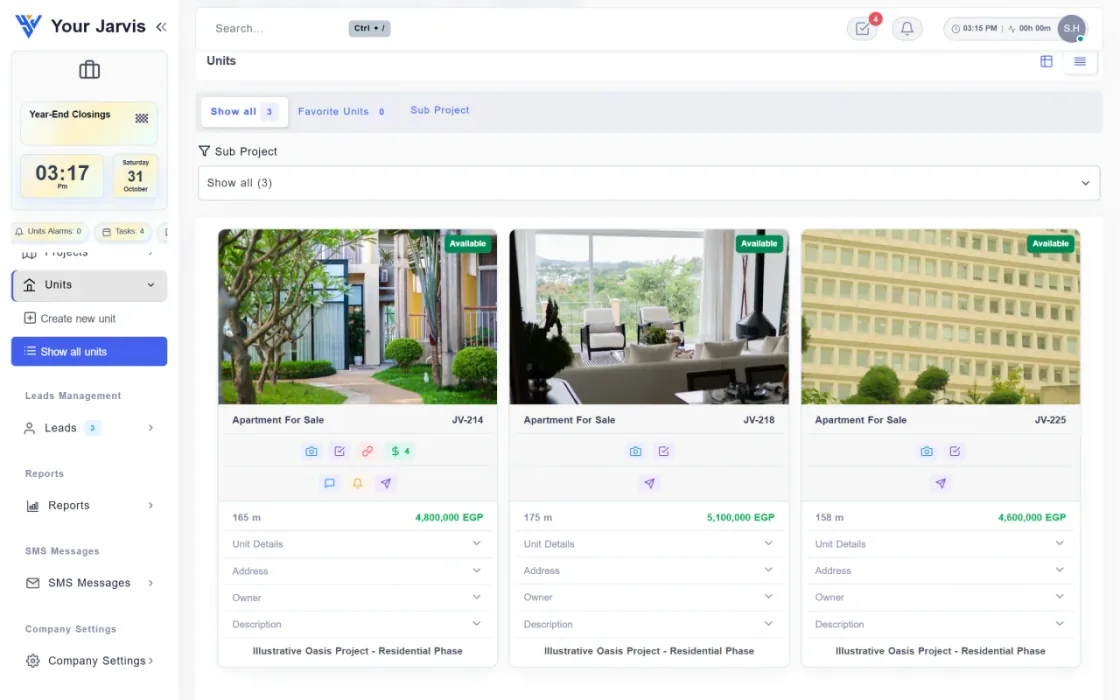
Organise inventory with specifications, current status, photos and associated relationships. Project and unit records give authorised colleagues a shared basis for reviewing the properties.
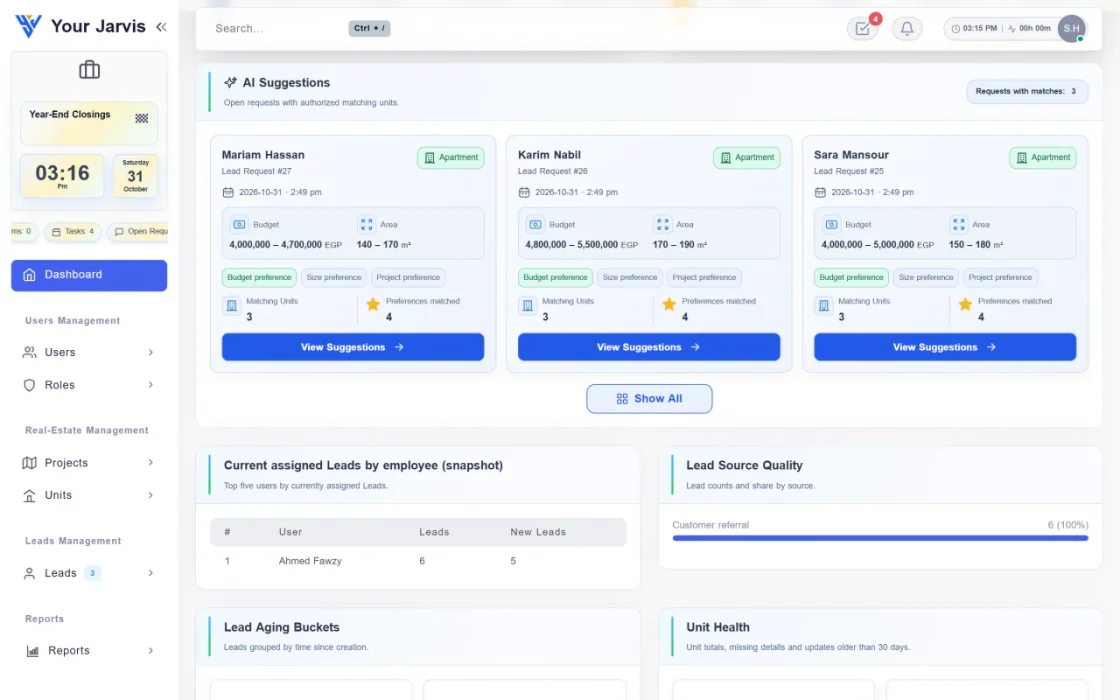
Compare requirements with eligible inventory using property type, transaction context and recorded preferences. Matching is rule-based and plan-dependent; the team reviews suggestions and their reasons.
Link dated tasks and logged conversations to the relevant records. Assignees mark work complete, while confirmation remains distinct so colleagues can understand the next step.
Review customer, property, task and employee activity through filters and exports. Defined performance scoring and saved achievements help managers examine the recorded work behind a total.
Control access to records, actions and administration. Responsive Arabic and English views, supported spreadsheet workflows and company resource settings help the team work within an agreed structure.
A connected example of the records and decisions a real-estate team works through.
Open the customer relationship, review recent activity and record the criteria for this particular property search.
Examine available property details and, where included, matching suggestions before deciding what to present.
Record the conversation and assign a dated task linked to the relevant customer or property.
Confirm completed work and review recorded activity, permissions and the team’s next priorities.
Public interface previews from the CRM website, shown with illustrative data.